
EyesRhythm is a webcam blink rate detector. It counts blinks through the camera already in your laptop. You do not need a special webcam. You just need the camera to see your face while you work.
Video stays on this computer. Nothing is sent away. Follow the steps below once, then leave the app running.
1. Let EyesRhythm use the camera
The first time you open the app, your computer will ask for camera permission. Click Allow.
- Mac: System Settings → Privacy & Security → Camera → turn EyesRhythm on.
- Windows: Settings → Privacy & security → Camera → allow desktop apps, then allow EyesRhythm.
2. Close Zoom, Teams, or the browser camera first
Only one app can use the camera at a time. If a meeting is already using it, EyesRhythm will show a black picture, or it will not go Live. Close those apps, then open EyesRhythm.
3. Sit the way you normally sit
Put the laptop or monitor so the camera is near your eye line. Sit about an arm’s length away, the same as a normal desk.
Too close, and your face fills the picture. Too far, and your eyes look tiny. Look at the screen, not down at the keyboard for a long time, if you want this stretch of work to count.
If you look clearly down, or turn far to the side, the app treats that as off-screen. That is on purpose. The score is about time at the screen, not the whole room.
4. Put the light in front of you
Face a window or a lamp. Do not sit with a bright window behind your head. That turns your face dark, and blinks are hard to see.
Glasses are fine. A little extra light on your eyes helps. You do not need a ring light.
5. Look at the screen, not past it
The app needs to see both eyes, looking mostly toward the camera. A quick glance away is fine. Working with your head turned to the side is not, those blinks will not count.
6. Check once, then hide the camera
In the app, choose Lens for a few seconds. You should see your face, both eyes, and a Live light. Then switch back to Atlas or another face. You do not need to watch yourself all day.
While you look at the screen, the status should say the eyes are open. If it stays off-screen, sit up, raise the laptop, or add light.
If you use more than one screen
Extra monitors are fine. The camera still has to see your face. How you place the laptop matters.
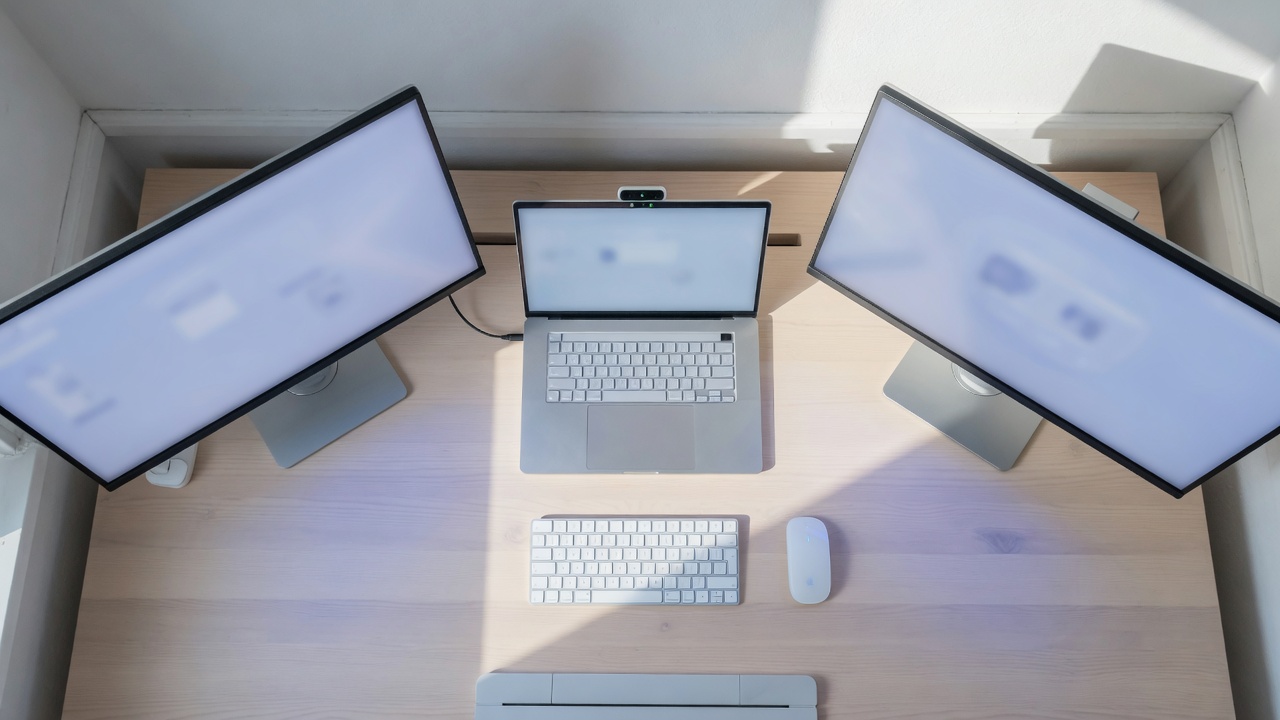
Best: laptop in the middle
Keep the laptop in the centre, facing you. Put one or two screens on the sides. Look mostly toward the laptop so its built-in camera can see your eyes. A glance to the side is fine. Sitting turned toward a side screen for a long time is not.
If the laptop is off to the side
If you look at other screens and the laptop sits to the left or right, the built-in camera is looking at your cheek, not your eyes. Blink counts will be poor.
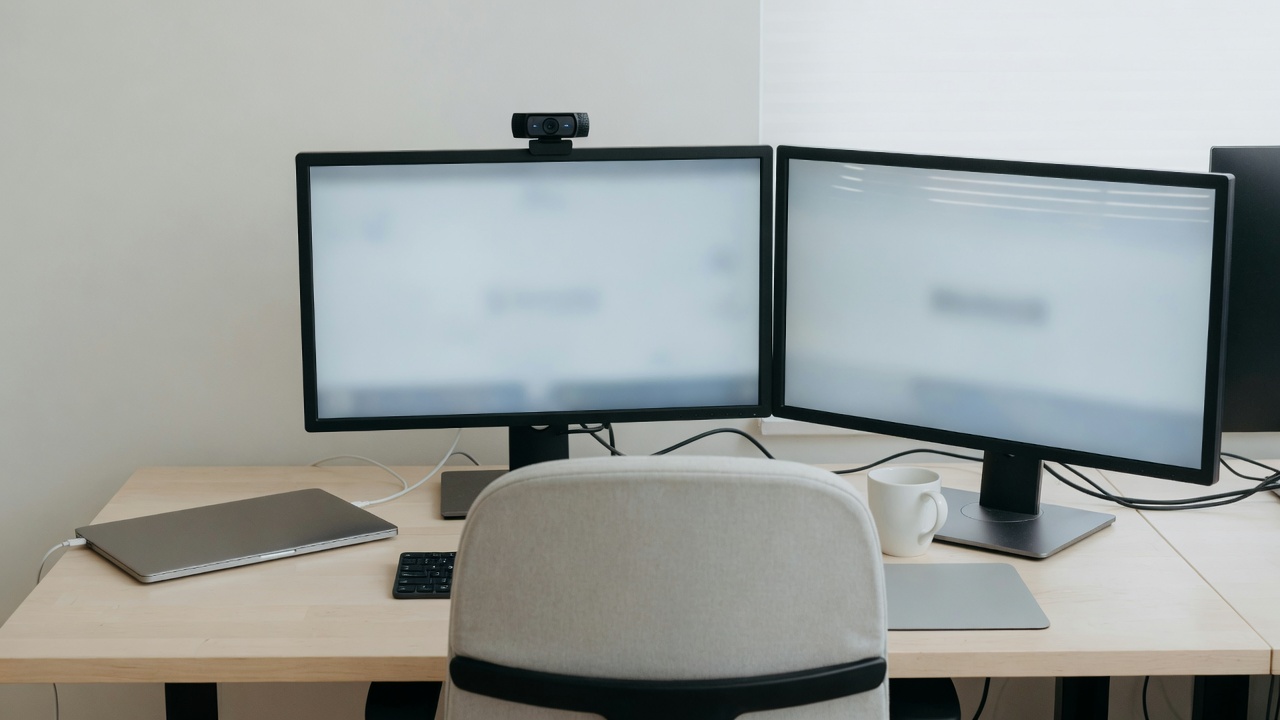
In that case use a small external webcam on the screen in front of you. Point it at your face. Keep the angle from your face to that camera as small as you can, almost straight on, not from the side or from far above.
Quick check
- Camera permission is on.
- No other app is using the camera.
- Camera near eye height, normal desk distance.
- Light on your face, not a window behind you.
- Lens shows your face, then you hide the preview.
If it is not working
| What you see | What to try |
|---|---|
| Black camera, not Live | Close Zoom, Teams, or any browser tab using the camera. Check camera permission again. |
| Always off-screen | Sit up. Raise the screen. Look at the display, not down at the desk. |
| Blinks missed with glasses | Face the camera and add a bit of light on your eyes. |
| The number jumps around | Stay in the picture for a minute. Looking away pauses the score on purpose. |
After this, leave it. EyesRhythm is a small window next to your work, not another chore.
All journal · Blink rate detector · Why the blink count is not enough